Pareto Chart Example: Hello Readers! Today we will discuss about the pareto chart principle (80/20 Rule) with manufacturing examples.
DOWNLOAD the Below Example Pareto chart in Excel format.
Pareto
Principle (80/20 Rule): –
The 80/20 Rule or Pareto Principle is the most
important part of Pareto Analysis. The rule 80/20 says that 80% of the effects
come from 20% of the causes.
History of 80/20 Rule: In Italy, Vilfredo Pareto has originally observed that 20% of people were owned 80% of the land. This principle was applied to quality control and favoured the use of the statement of the phrase, which is “The Vital few and useful many” to define the 80/20 rule in the 20th century by Dr. Joseph M. Juran.
Understanding
of Principle with Manufacturing Example:
We have taken the major defects related to the Metal fabrication and casting Process. We will analyze the contribution of defects among all with the help of the Pareto principle 980/20 Rule). So, let’s get started with two important examples, details are given below.
Example:
Defects
Quantity
Fatigue
41
High temp. defect
37
Mechanical Property degradation
32
Creep
28
Env. Interaction
23
Microstructural changes
19
Wear
16
Abbrasive Wear
12
fretting
9
Erosion
5
Now, we are supposed to calculate the
Cumulative total and Cumulative percentage
Defects
Quantity
Cumulative
Total
Cumulative
in
%
Fatigue
41
41
18%
High temp. defect
37
78
35%
Mechanical Property degradation
32
110
50%
Creep
28
138
62%
Env. Interaction
23
161
73%
Microstructural changes
19
180
81%
Wear
16
196
88%
Abbrasive Wear
12
208
94%
fretting
9
217
98%
Erosion
5
222
100%
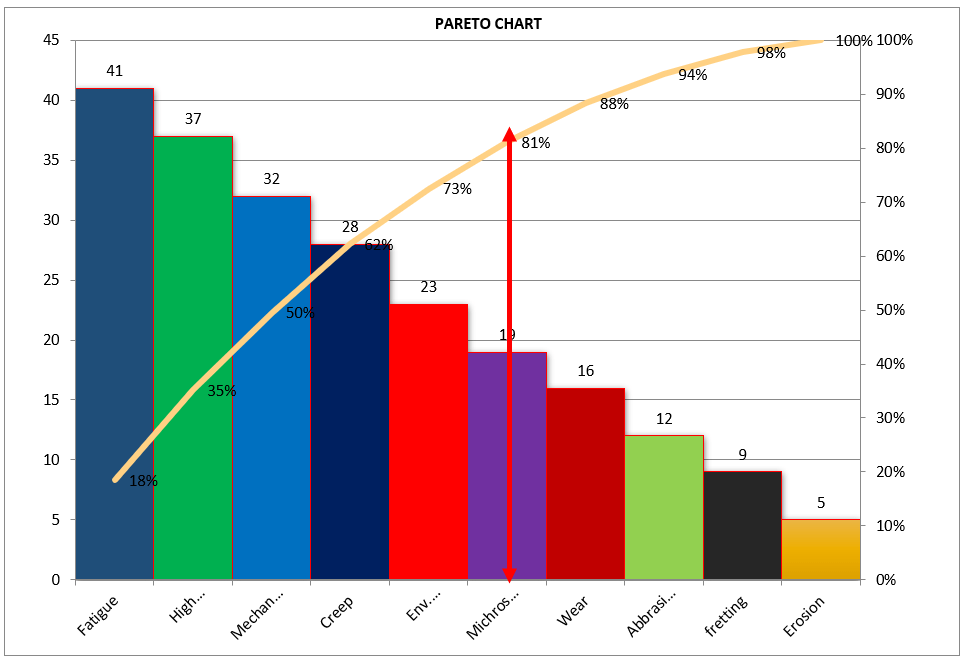
Now, we will plot the Pareto chart and will apply the 80/20 rule to know the 80% contribution among all defects.
Pareto Chart Example
Application of 80/20 rule on the above example: kindly go through the above example and Pareto chart as well, in the aforesaid Pareto chart we have marked by the red color arrow and it is indicating the 80% contribution on a line graph, which means whatever defects are coming under the arrow are contributing the 80% contribution. If you are able to resolve these defects means, your 80% contribution will be solved out of 100%.
I hope the above articles are useful
and you people are understood well.
Shanti Gopal Pradhan is an experienced professional in Quality Management Systems, QA, Operations, Business Excellence, and Process Improvement. He has strong expertise in international standards including IATF 16949, ISO 9001, ISO 14001, ISO 45001, and ISO 17025, along with methodologies such as TQM, TPM, and Six Sigma.
He holds a degree in Mechanical Engineering along with an MBA, combining strong technical acumen with strategic business insight, he is a Certified Internal Auditor, Lead Auditor, and Six Sigma Black Belt, with a proven track record in driving quality transformation and operational excellence.
How to Plot Pareto Chart in Excel | Manufacturing example
How to Plot Pareto Chart in Excel ( with example), step-by-step guide and illustration with example is given below, just follow to prepare the Pareto chart in Excel.
A Pareto Chart is named after the Italian Economist Vilfredo Pareto. It is a type of chart which contains both bars and a line graph, where the individual values are represented in the bar graph in descending order (largest to smallest value) and the cumulative percentage is represented in the line graph.
Purpose of Pareto Chart:
The purpose of the Pareto Chart is to indicate the Contributions among the set of data.
E.g. let us have six types of defects that we would like to know the most cumulative contributions among them those contributing the 90%, in such a scenario, we have to plot the Pareto Chart to know the 90% contribution with the help of line Chart, we simply cover the 90% level of line Chart, those are coming under the line graph will represent the 90% contribution. so simply Pareto Chart is helping here to identify the contribution.
Understanding the Pareto Chart principle (The 80/20 rule):
The Pareto principle is also known as the 80/20 rule derived from the Italian Economist Vilfredo,
The principle is understood as –
20% of the input creates 80% of the results
Or
80 % of the effects come from 20% of the causes.
Illustration of How to Plot Pareto Chart in Excel
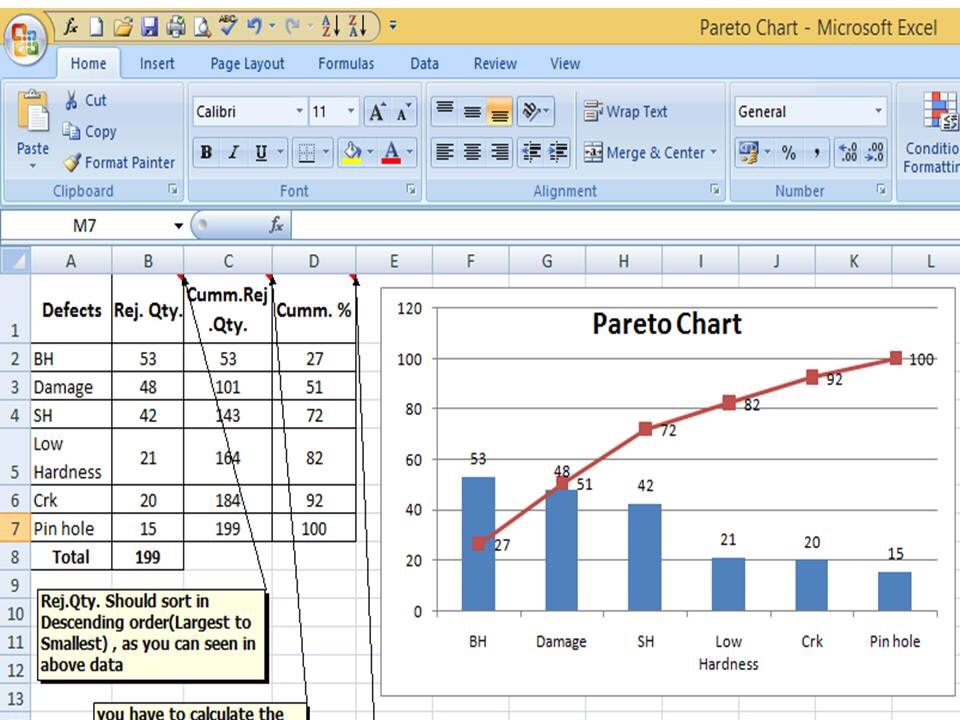
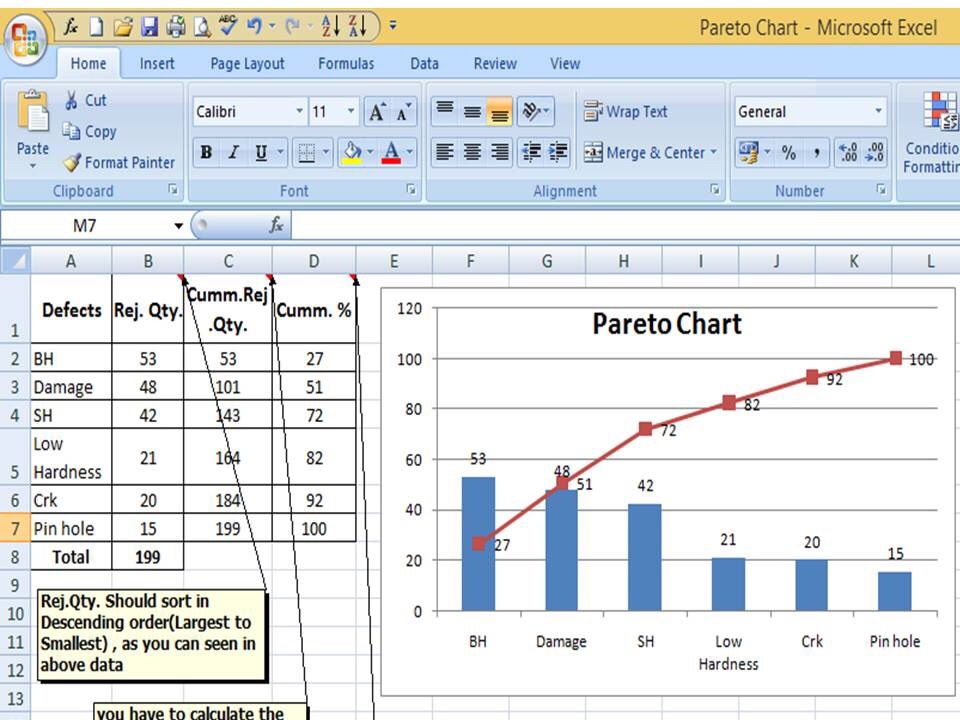
In the above Pareto Chart, we can see the cumulative% in the line graph, According to the Pareto Chart principle 80/20 rule, the 80% cumulative in the line graph is filling under the low hardness, which means BH, Damage, SH and Low hardness defers are coving the 80% of contribution over total types of defects. And those 80 % contributions were due to the 20% of the cause.
Advantages of Pareto Chart:
1. To optimize the production
2. Reduces the Rejections
3. Reduce the COPQ/COQ
4. Improve the quality
5. Improve the performance of the product
6. Improve the customer satisfaction
7. Reduce the rework cost.
Etc.
How to Plot Pareto Chart in Excel ( with example):
Step -1
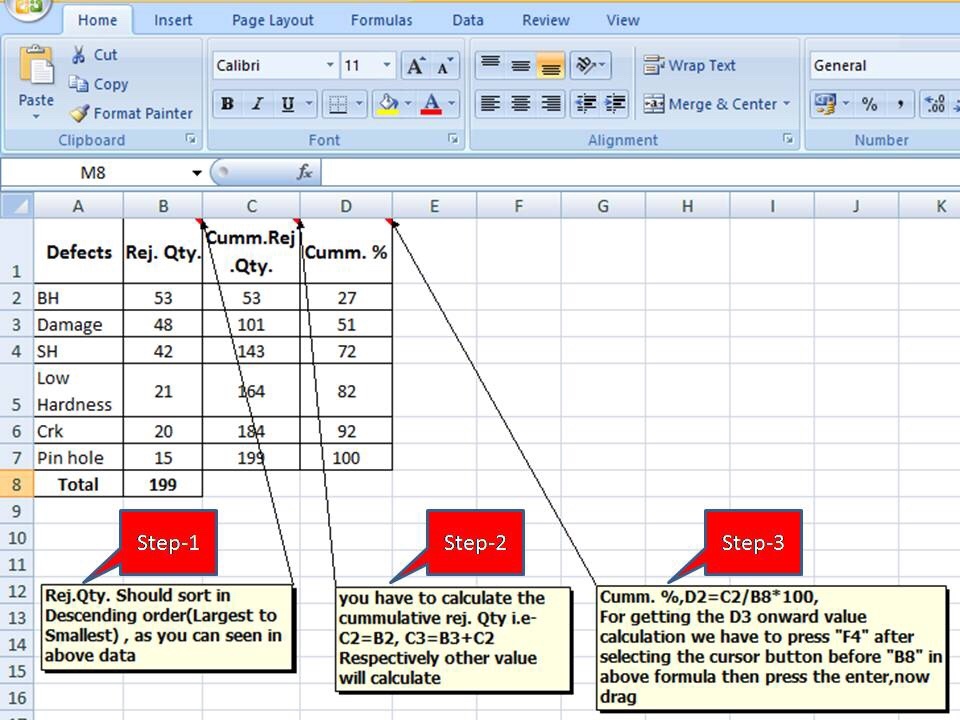
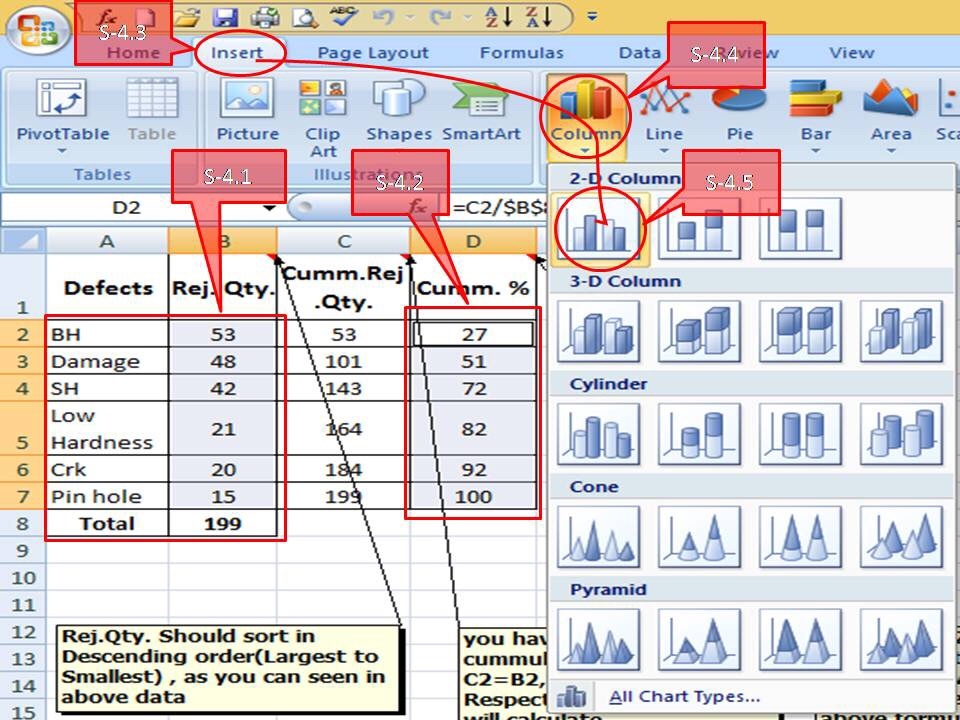
We have six types of defects BH(Blow Hole), Damage, SH(Shrinkage), Low hardness, Crk( Crack), and pinhole, and the total rejection quantity is 199. So now we have to arrange/sort the rejection Quality value in descending order (largest to smallest)
Then we have to calculate the cumulative rejection quantity and cumulative % as per the below step ( from steps 1 to 3)
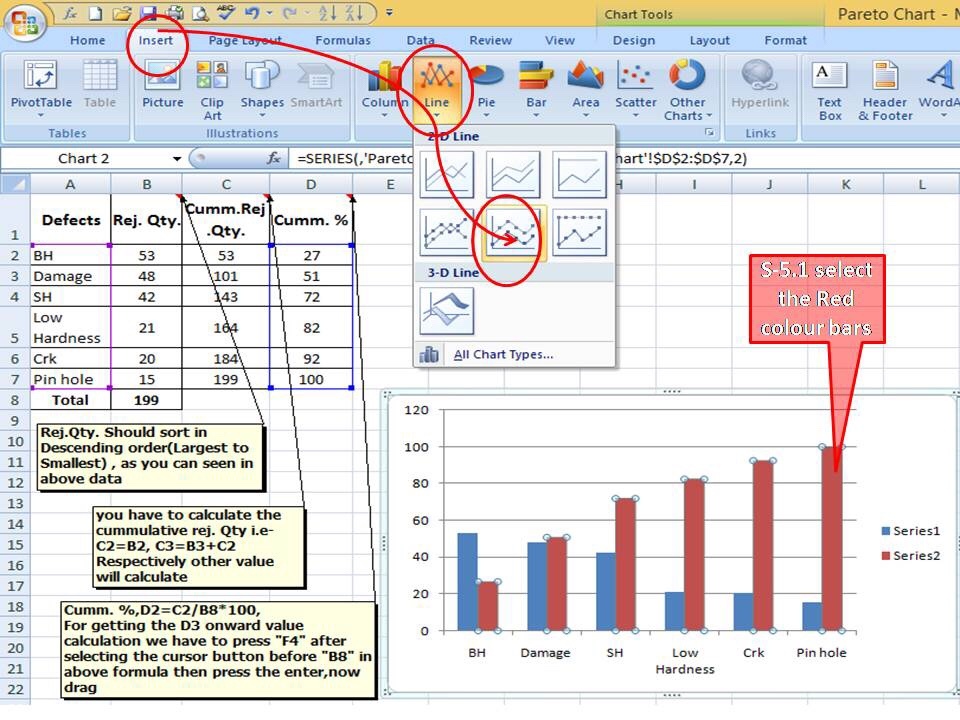
As described above, the Rejection quantity should be sorted in descending order(Largest to smallest), then you have to calculate the cumulative rejection quantity i.e C2=B2, C3=B3+C2, respectively other values need to be calculated, and finally Cumulative %, D2=C2/B8x100, for getting the D3 onward value calculation, we have to press “F4” after selecting the cursor button before “B8” in the above formula then press the enter, now drag.
Step -2
Now you have to select defects, rejection quantity, and cumulative % column as per the above, and then go to the insert column and select the bar chart. Simply follow the steps(From S-4.1 to S-4.5) given in above.
Step -3
After selecting the bar chart, just follow the steps (select “insert” in the Excel sheet then line and finally select the “Line” graph) as described below ( convert the red colour bar into the line Chart )
After the conversation of the secondary red colour bar into the Line Chart, the Pareto Chart will be ready to use as
In the above Pareto chart, you can see the bar represents the defect’s Rejection quantity and the line represents the contribution of the cumulative percentage.
Example:
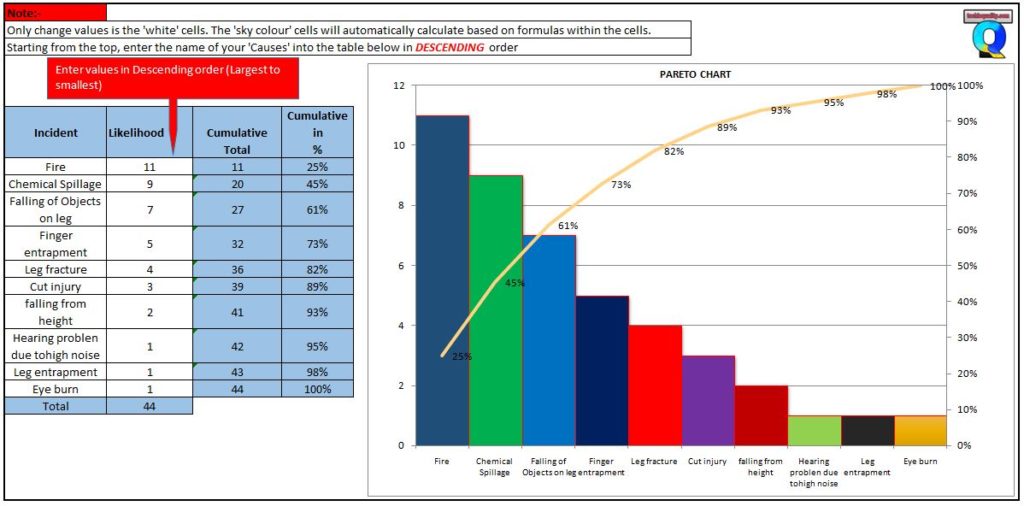
A total of 44 numbers SHE-related incident has been registered in the manufacturing industry in the last couple of financial year. To know the contribution of the individual incidents the SHE officer prepared the Pareto chart. The same Pareto chart is given below.
you can follow the below steps to analyze the Pareto chart;
Collect the data.
plot a Pareto chart with the help of the above steps.
Apply the 80:20 rules/principle.
select the defects under 80% contribution
Brainstorm the potential cause.
Do the hypothesis test or validate the potential cause to find out the significant cause.
Do the RCA
Take the action plan
Implement the plan.
Monitor the effectiveness.
Example-2 of How to Plot Pareto Chart in Excel
Plot the Pareto chart of the given below data.
Defects
Rejection Quantity
A
100
B
80
C
70
D
50
E
30
follow the below steps to plot the Pareto chart
Step-1:
First of all, calculate the cumulative rejection quantity
Defects
Rejection Quantity
Cumulative Rejection Quantity
A
100
100
B
80
180
C
70
250
D
50
300
E
30
330
Step-2:
calculate the cumulative rejection %
Defects
Rejection Quantity
Cumulative Rejection Quantity
Cumulative rejection %
A
100
100
30
B
80
180
55
C
70
250
76
D
50
300
91
E
30
330
100
Step-3:
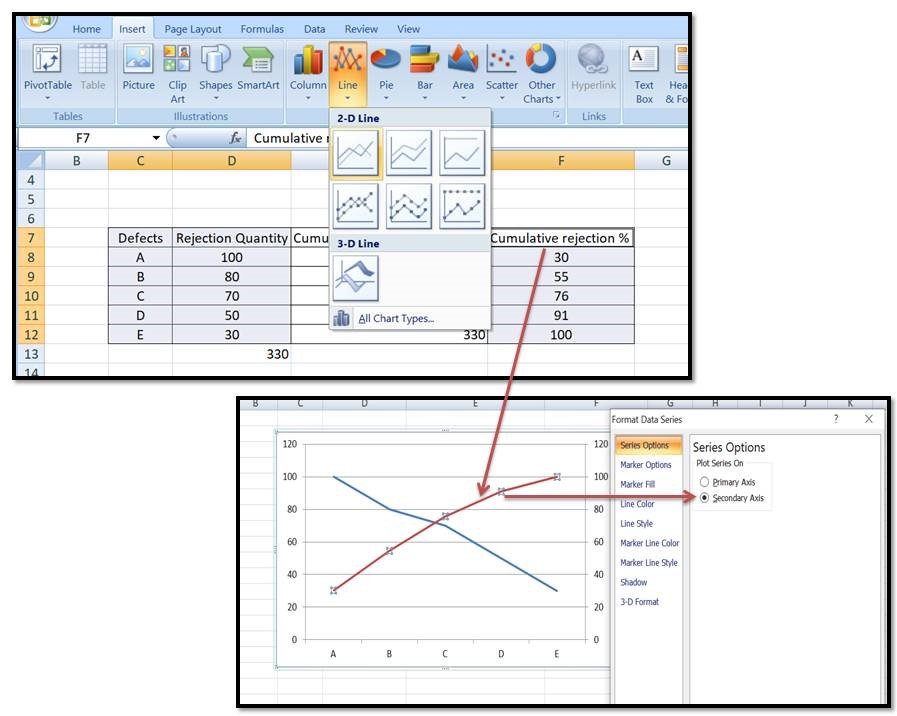
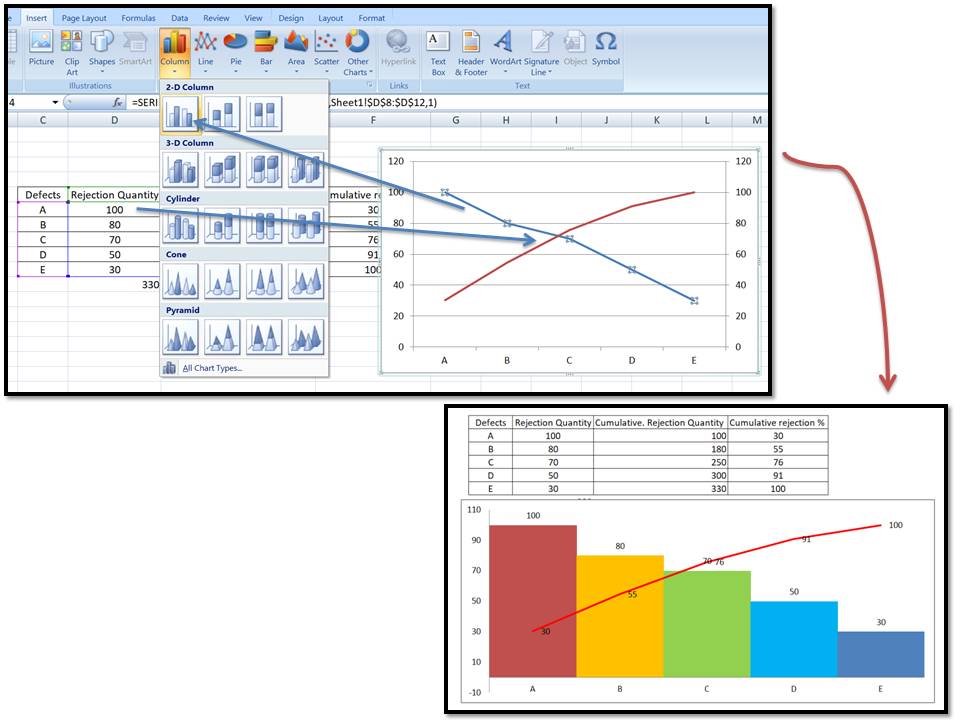
Select the Defects, Rejection quantity, and cumulative rejection % column, and then go to the Insert—>>Line chart. once you select the line chart then, select the cumulative rejection% line chart as the secondary axis. go through the below image for a better understanding.
Step-4:
Select the rejection quantity line chart and then, go to the insert——>>Column chart. now the Pareto chart is ready, if you want to customise the colour, and gap then do it manually for a better visual effect.
Shanti Gopal Pradhan is an experienced professional in Quality Management Systems, QA, Operations, Business Excellence, and Process Improvement. He has strong expertise in international standards including IATF 16949, ISO 9001, ISO 14001, ISO 45001, and ISO 17025, along with methodologies such as TQM, TPM, and Six Sigma.
He holds a degree in Mechanical Engineering along with an MBA, combining strong technical acumen with strategic business insight, he is a Certified Internal Auditor, Lead Auditor, and Six Sigma Black Belt, with a proven track record in driving quality transformation and operational excellence.
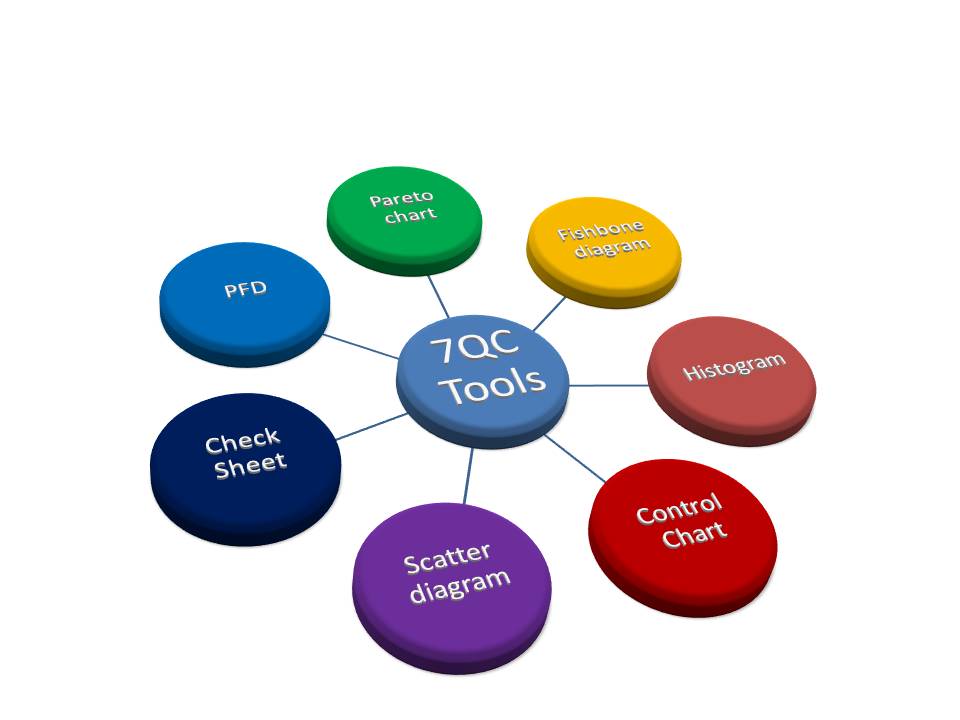
The 7QC Tools (Also Known as “Seven Basic Tools of Quality”) originated in Japan. First emphasized by Kaoru Ishikawa, a professor of engineering at Tokyo University and the father of “quality circles”. These tools are used to solve critical quality-related issues. You can use the 7 basic tools of quality to help understand and solve problems or defects in any industry. With the help of Excel, you can plot the graphs / Diagrams to resolve the daily quality problems. I will help you to understand the basic ideas and knowledge of 7QC Tools and their usage.
For solving problems seven QC tools are used Pareto Chart, Cause & Effect Diagram, Histogram, Control Charts, Scatter Diagrams, Graphs/Process Flow Diagram, and Check Sheets. All these tools are important tools used widely in the manufacturing field to monitor the overall operation and continuous process improvement. seven QC tools are used to find out the Root cause of the problem and implement the action plan to improve the process efficiency.
Enhances customer satisfaction through improved quality product
Reduce cycle time and improve efficiency
Control cost of poor quality / Cost of quality
Reduce defects and optimize the production
Reduce variations and improve the quality of Products
Encouragement of teamwork and confidence
Enhancement of customer focus.
Pareto Chart:-
A Pareto Chart is named after the Italian Economist Vilfredo Pareto. It is a type of chart that contains both bars and a line graph, where the individual values are represented in the bar graph in descending order (largest to smallest value) and the cumulative percentage is represented in the line graph.
Click here to learn “How to Plot Pareto Chart In Excel”.
Understanding the Pareto Chart principle (The 80/20 rule):
The Pareto principle is also known as the 80/20 rule derived from the Italian Economist Vilfredo,
The principle is understood as –
20% of the input creates 80% of the results
Or
80 % of the effects come from 20% of the causes.
Pareto Chart Example
[Figure-1]
In the above Pareto Chart[Figure-1], we can see the cumulative% in the line graph, According to the Pareto Chart principle 80/20 rule, the 80% cumulative in the line graph is filling under the low hardness, which means BH, Damage, SH and Low hardness defers are coving the 80% of contribution over total types of defects. And those 80 % of contributions were due to the 20% caused.
Histogram:-
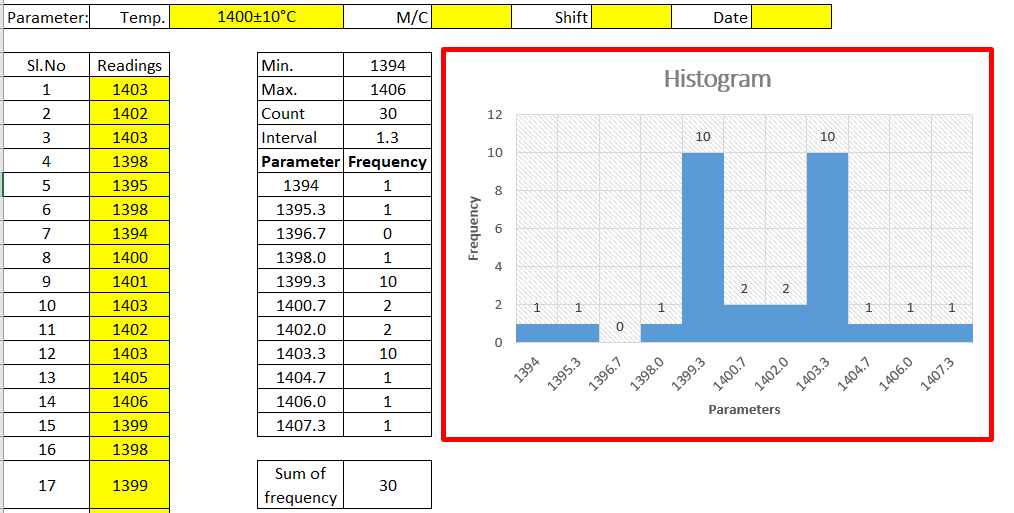
The histogram is one of the 7QC tools, which is the most commonly used graph to show frequency distribution.
Helps summarize data from a process that has been collected over a period of time.
Click here to know the “How to Plot Histogram in Excel:
Histogram Template
[Figure-2]
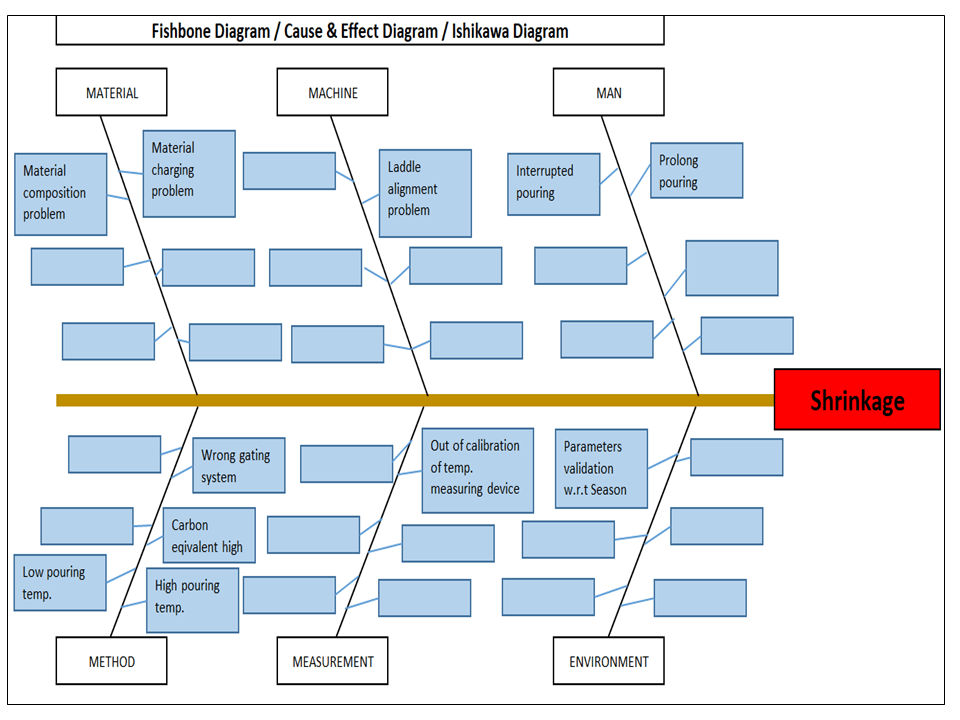
Fish-bone Diagram/Cause and Effects /Ishikawa Diagram:-
The cause and Effects Diagram looks like a fish that’s why it’s called Fish-bone Diagram, also called the Ishikawa diagram.
It’s a visualization tool for categorizing the potential causes of a problem in order to identify its root causes.
CFT members are identifying the potential cause through the Brainstorming process of individuals and together.
The Potential cause is related w.r.t below as
Machine
Manpower
Environment
Method
Materials
Measurement
[Figure-3]
Scatter diagram:-
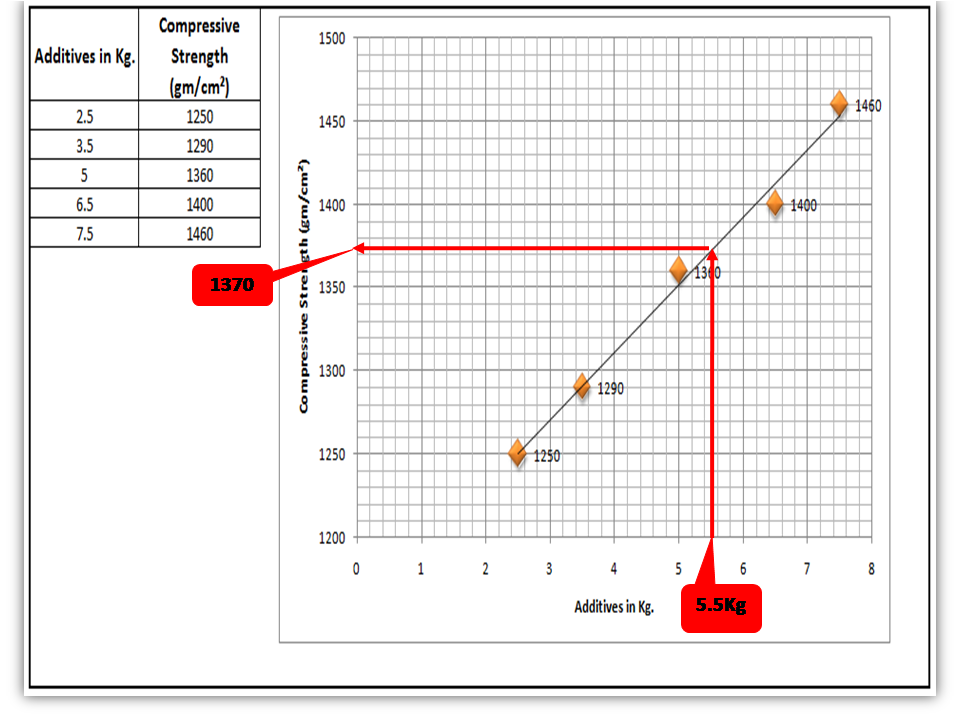
The scatter diagram graphs pairs of variable data, with one variable on each axis, to look for a relationship between them. If the variables correlate, the points will fall along a line or curve. The better the correlation, the more points will strongly cluster to the line. It generally gives the idea of the correlation between the variables.
[Figure-4]
In the above figure-4, the positive and Negative correlation is only due to the direction, and in both the correlation, points are clustered to the line but in the last figure in figure-4, Points are not clustered to the line but spread over the X and Y-axis.
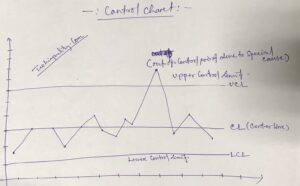
Control Chart:-
A line on a control chart is used as a basis for judging the stability of a process. If the observed points are beyond a control limit then it is evidence that special causes are affecting the process.
Control Charts can be used to monitor or evaluate a process.
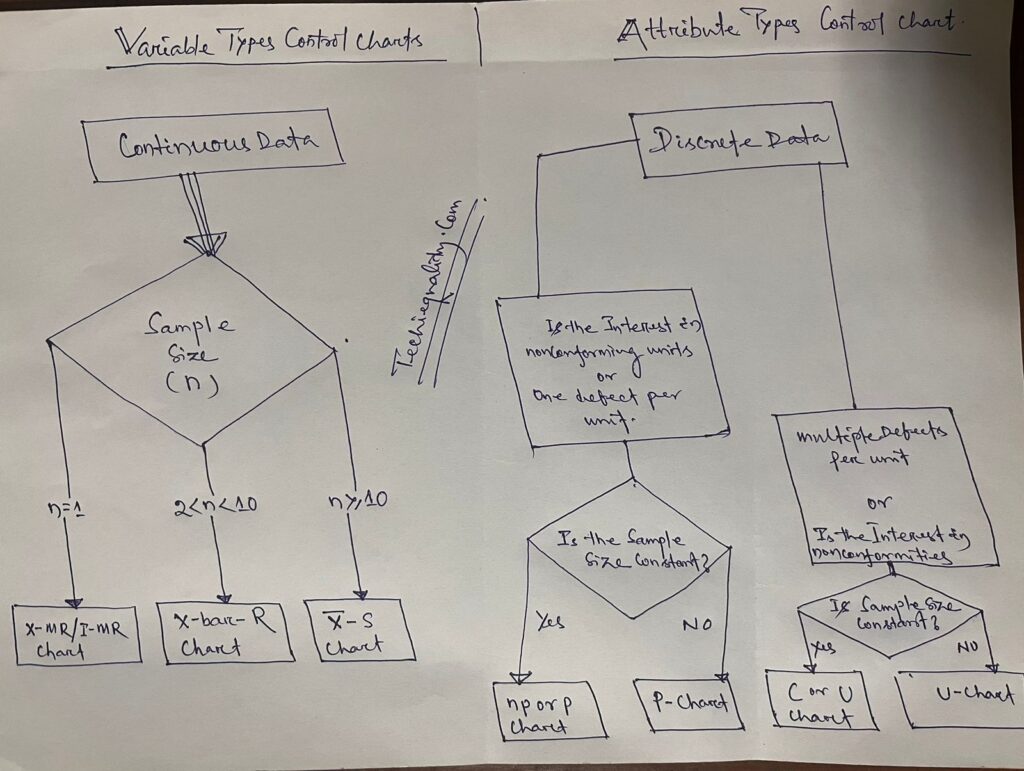
There are basically two types of control charts, those for variable data and those for attributes data.
Click here to learn more about the Control Chart and Statistical Process Control.
Benefits:-Higher Quality, Lower Unit Cost, Higher effective Capability, etc.
Selection of Control Charts based on Attribute / Variable Type Data:-
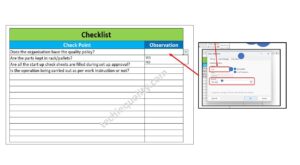
Check Sheet is a simple document used for collecting data in real time. Variable or Attribute type data is collected through a Check sheet. A check sheet generally helps to make the decision on the basis of a fact and to collect the data for analysis and evaluation.
Sample check Sheet:-
Logo
Title:-………
Format No-
Issue no-… rev. no-
Date-
Parameters
Specification
Observations
Remarks
Checked by:- Verified by:-
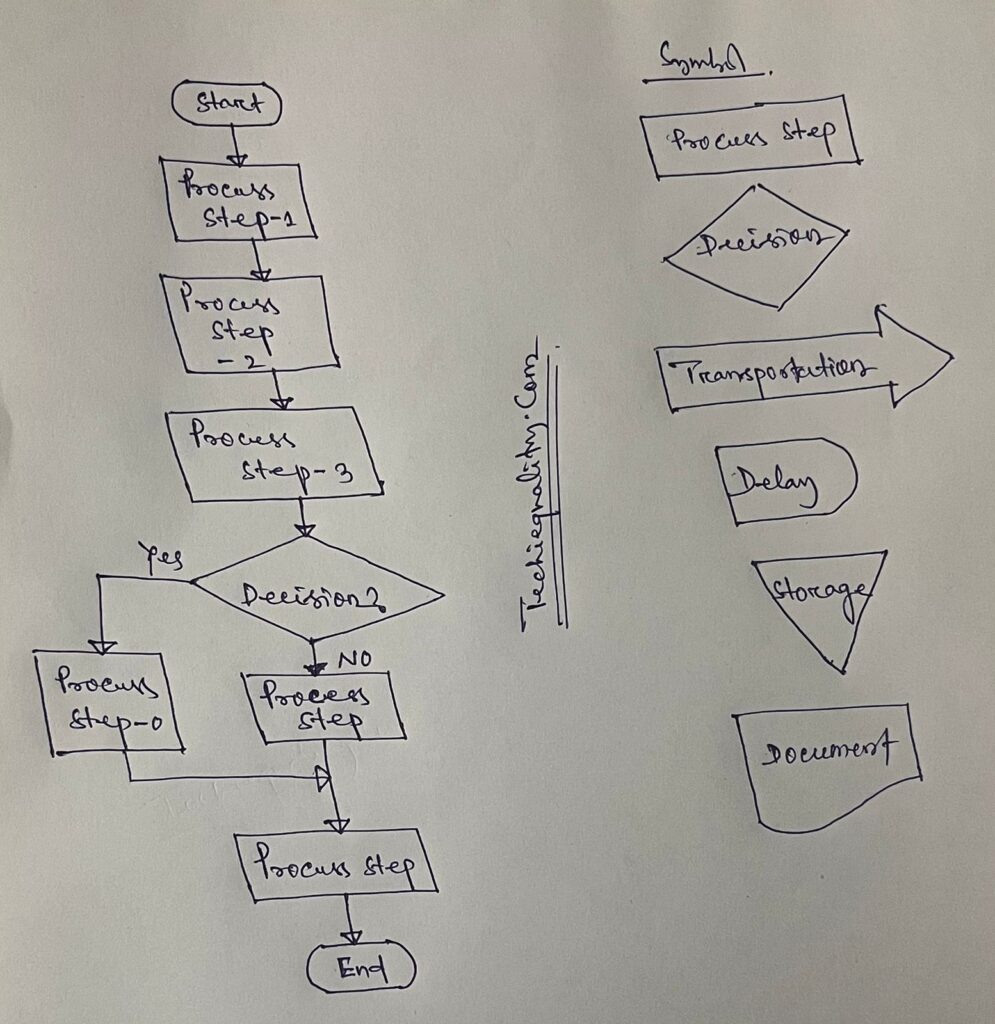
Process Flow diagram/Graphs:-
A process flow diagram is a diagram used to indicate the general flow of plant processes and equipment.
The 7QC tools are the most commonly used tool in the industry for improvement, With the help of the 7QC tools you can understand the process/activities, analyze the data, and interpret the result/graph/output.
Shanti Gopal Pradhan is an experienced professional in Quality Management Systems, QA, Operations, Business Excellence, and Process Improvement. He has strong expertise in international standards including IATF 16949, ISO 9001, ISO 14001, ISO 45001, and ISO 17025, along with methodologies such as TQM, TPM, and Six Sigma.
He holds a degree in Mechanical Engineering along with an MBA, combining strong technical acumen with strategic business insight, he is a Certified Internal Auditor, Lead Auditor, and Six Sigma Black Belt, with a proven track record in driving quality transformation and operational excellence.