How to Register Mobile Number in Allahabad UP Gramin Bank 2024

How to Register Mobile Number in Allahabad UP Gramin Bank

How to Register Mobile Number in Allahabad UP Gramin Bank :

Hello! Reader, Today we will describe here How to Register Mobile Number in Allahabad UP Gramin Bank? Now a days it is very important to register a mobile number with a bank account, from bank communication to a transaction, a registered mobile number plays a vital role for account holders. hence if you would like to register a number with your grameen bank account then, read this article carefully.

Download the Application in Word.

Day by Day Allahabad UP Gramin Bank is getting popular and also people are opening their accounts. If you forget to register your mobile number, then follow the below process to get it done. For doing so you have to visit the Allahabad UP Gramin Bank, where you have already opened your account. And need to submit the application to the Bank Manager.

Download

AppliCation-1 (Application for Mobile Number Registration with My Bank Account)

How to Register Mobile Number in Allahabad UP Gramin Bank

Application-2 (Application for Changing of Mobile Number against existing one)

How to Register Mobile Number in Allahabad UP Gramin Bank

How to Register Mobile Number in Allahabad UP Gramin Bank?

Example of Application:

To

     The Bank Manager of Allahabad UP Gramin Bank, [mention here the branch location name].

(Subject: Application for Mobile Number Registration with My Bank Account)

Dear Sir,

               With due respect and humble submission, I beg to state that I am [Mention Your Name].

I have an Account in Allahabad UP Gramin Bank, [Mention Branch name], [Account Number], [Mobile Number], [Address]. I feel that I had made a Mistake during the opening of my Bank Account and forgotten to mention my Mobile number. Now I am mentioning my Current active Mobile number i.e. [Mention here your current active mobile number] for being registered with my Bank account.

Therefore, I shall be Very Grateful if you register my Current Mobile Number With my Bank Account.

Yours faithfully,

Name:

Address:

Mobile Number:

Account Number:

[Note: Don’t Worry just Download the Word file and change the red highlighted colour accordingly]

If you are similarly looking for a mobile Number Change against the existing one, then follow the below sample application and you can download the same in the above link.

Sample Application of Mobile Number Change against the Exist one:

To

     The Bank Manager of Allahabad UP Gramin Bank, [mention here the branch location name].

(Subject: Application for Changing of Mobile Number against existing one)

Dear Sir,

               With due respect and humble submission, I beg to state that I am [Mention Your Name].

I have an Account in Allahabad UP Gramin Bank, [Mention Branch name], [Account Number], [Mobile Number], [Address]. My registered mobile number is not active. So hereby I am mentioning my Current Active Mobile Number i.e. [Mention here your current active mobile number] for being Changed.

Therefore, I shall be Very Grateful if you Change my Current Mobile Number to the Existing one.

Yours faithfully,

Name:

Address:

Mobile Number:

Account Number:

[Note: Don’t Worry just Download the Word file and change the red highlighted color accordingly]

Note The above process may change, w.r.t bank policy, terms, conditions, and rules, so kindly contact with your respective Gramin bank to know more.

Thank You For Reading…..Keep Visiting Techiequality. Com

Popular Post:

SBI Net Banking Registration Through Online

SBI Net Banking Registration Through Online

SBI Net Banking Registration Through Online | step by step guides:

Hello friends, still you do not have SBI Net banking even after having the SBI Accounts. And also making bill payments, and fund transfers in offline. Guys, what are you thinking now? Are you wishing to register for SBI net banking? Just wait!! Now no need to visit the nearby SBI bank to register the net banking. In this tutorial, I will guide you step by step to register and activate the SBI net banking through online. the details process of SBI Net Banking Registration Through Online is given below, just go through it.

Step by Step Guides:

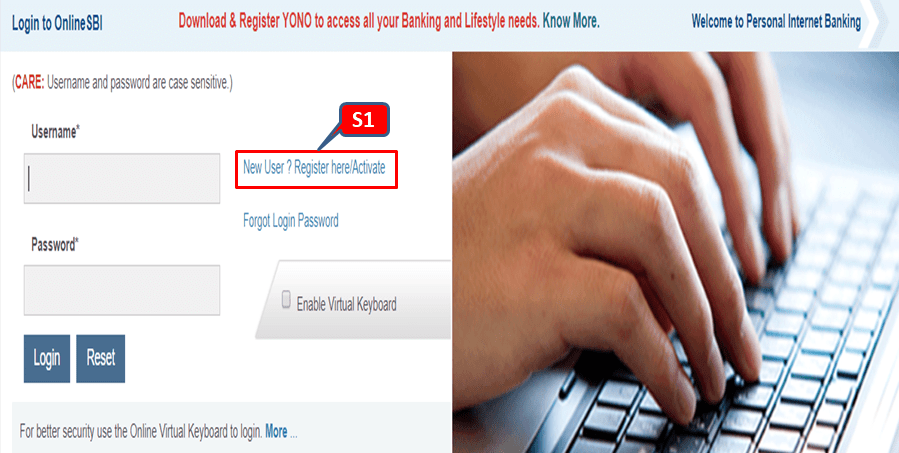
Step-1: Visit the SBI official website i.e https://retail.onlinesbi.com/retail/login.htm or

CLICK HERE to directly open the SBI web page. Next, you have to click on “New User/Register here/Active” (here it is marked as S1 in the below red highlighted box). Move on to the step-2 for subsequent processing.

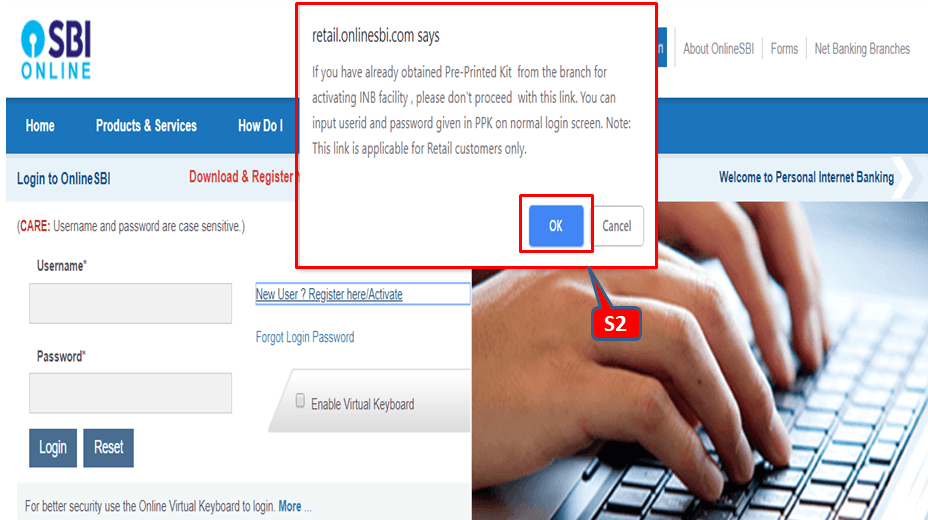
Step-2: In this step, after completion of step-1 you have to click on “ok” (which is marked in the below figure as S2).

SBI Net Banking Registration Through Online

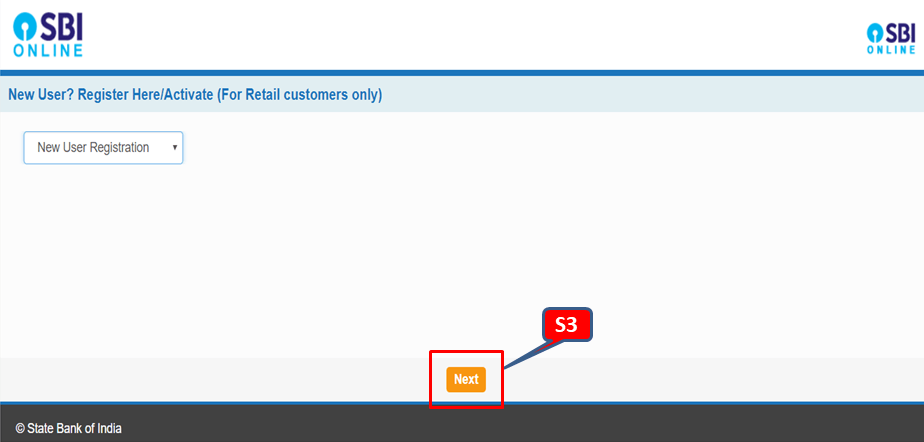
Step-3: 

Have you completed the step-2? If yes, then just click on “next”. Which is highlighted in the red box in below figure?

SBI Net Banking Registration Through Online

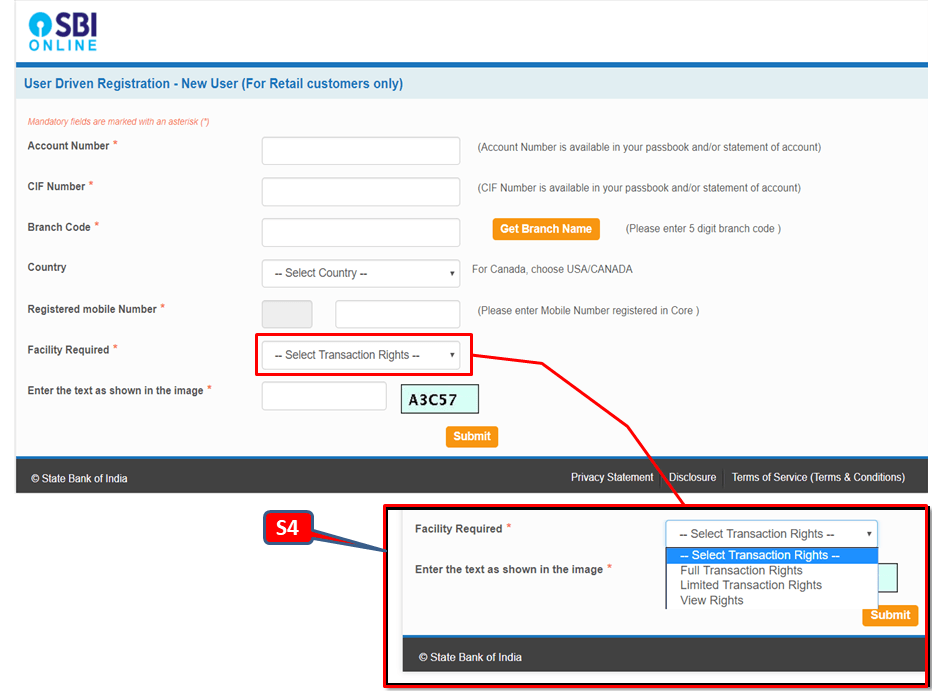
Step-4: Before proceeding with this step; you have to keep ready of account number. CIF number and Branch code. The CIF number is generally available in your passbook. And for the Branch code, there is a search option; by which you can easily find the branch code. In the section of facility requirements; SBI provides three options for their customer as [1] Full transaction rights [2] Limited transaction rights [3] view rights. Here you just select the full transaction rights. After filling up the all options on this page just do submit and continue to the next.

SBI Net Banking Registration Through Online

Step-5: They will send you the OTP to your register number. Next, you have to put the same OTP in the web page for confirmation.

Step-6: After confirming the OTP system will appear on a web page. There you have to choose the first option as “I have my ATM Card” then submit and follow the next step.

Step-7: After completion of step-6. A new page will appear; there you have to fill up and submit the details of the ATM card as [1] card number [2] valid up to [3] cardholder name and ATM pin.

Step-8: After submission of ATM details, the system will show you a temporary username and will ask you to create a password. After creating the password you will receive the temporary username and password to your registered mobile number.

Step-9: With the help of a temporary username and password you have to login the first time to create the permanent login and profile password.

FAQ:

Q1- What are the transaction rights available?

A- Three transaction rights [1] full transaction rights [2] limited transaction rights [3] view rights.

Q2- What do you mean by view rights?

A- You can’t do any transaction but you can view only data.

Q3- What is full transaction rights and limited transaction rights

A-full transaction rights: you can do transactions to any bank and you enjoy full facilities provided by the bank.

Limited transaction rights: you can just do the transaction to the bank those are within the same CIF circle.

Q4- Can I upgrade the transaction right in the future?

A-yes,

Source: SBI.

Thank you for reading……keep visiting Techiequality

Popular Post:

How to apply for SBI ATM card through net banking

How to apply for SBI ATM card through net banking ?

Hello Everyone, Now a days ATM card have become an important part for the people and who carry the ATM card know that after expire of validity limit the ATM card is to be issued. You can get an ATM card by applying online through Net-Banking. So we are here to help you and guide you step by step on How to apply for SBI ATM card through net banking?

Step by Step guides for “how to apply through Net-Banking to get the SBI ATM Card

Step-1:

Visit the SBI official net-banking website i.e https://retail.onlinesbi.com/retail/login.htm and login to your net- banking SBI account.

Step-2:

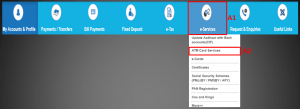
After login to your accounts you can see the figure like below.  Now you have to click on A2-Red highlighted box, mark in below figure (ATM Card Services) which will come under section e-service (A1 red highlighted box in below figure).

How to apply for SBI ATM card through net banking

Step-3:

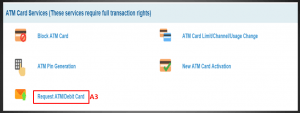
Now In Step-3, you have to click on A3 red highlighted box (Request ATM/Debit Card), which is marked in below figure.

How to apply for SBI ATM card through net banking

Step-4:

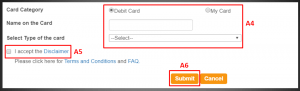
After click on A3 red box (Described in above step-3), new page will open. Where you have to select the account number first. Next you have to fill up and select some option there at the bottom of the same page, which I am going to describe here. As you can see below figure same you will find there. After fill up and selection of card type you need to submit.

How to apply for SBI ATM card through net banking

Step-5:

After submission as per above step-4, Now such below type of figure will appear, here you could select the registered address or new address as you wish. If you would like to get your ATM card as per your convenience address then you has to select the new address option. after fill up the new address you have to submit. After submission of all information, system will ask you for confirmation through OTP or through Net-Banking Profile login. After confirmation you need to submit the request for ATM/Debit Card.

How to apply for SBI ATM card through net banking

FAQ:

Q1How many days will it take to get the ATM Card?

A1– It will take 7-8days after Submission of request through net-banking.

Q2- Can I get the SBI ATM card as per my convenience Address?

A2– Yes, you can select the delivery address as per your convenience address.

Q3- Can I get the EMV ATM Card?

A3– Yes.

Q4- What are the types of ATM Card selection option available there?

A4– International/Global, National/Domestic types of card. (Visa, Master, RuPay etc.)

Thank you for your support and Co-operation.

Source: SBI.

More on TECHIEQUALITY