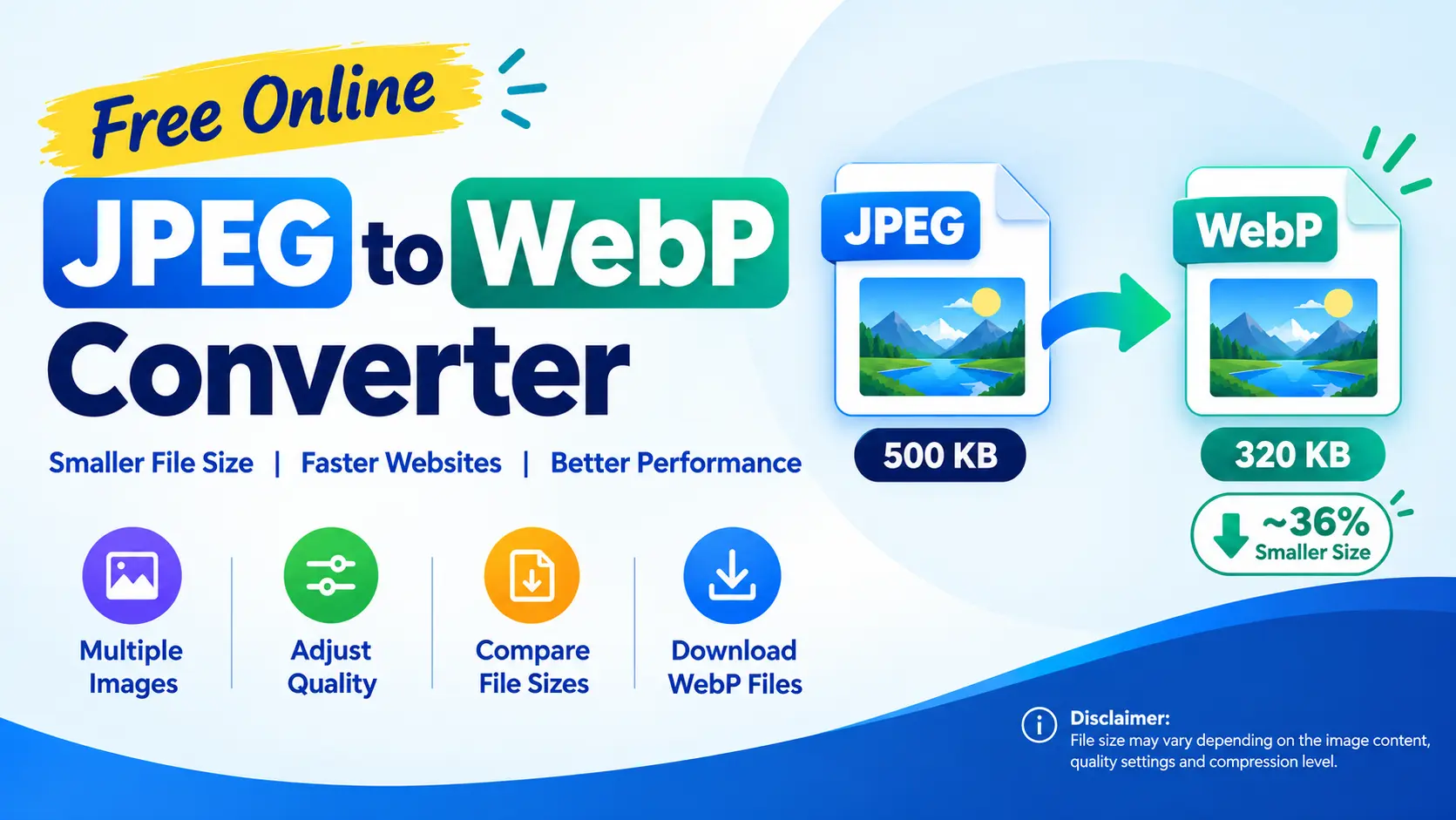
Hi Reader! In this post, we’ll discuss a very useful topic. If you publish blog posts, manage a website, run an online store, or work with digital images, you have probably dealt with large image files slowing down your pages. JPEG is a reliable image format, but it isn’t always the most efficient option for modern websites. Try out our free JPEG to WebP Converter now!
JPEG to WebP Converter
Convert JPEG images to WebP online.
How to convert JPEG to WebP
- 1Choose your imagesClick the button above and select one or more JPEG files.
- 2Set the qualityAround 80% keeps images sharp while cutting file size.
- 3ConvertPress Convert and check the new file size shown for each image.
- 4DownloadPress Download to save your WebP files.
Why use WebP images?
WebP is an image format developed by Google. It usually produces smaller files than JPEG at similar visual quality, so web pages load faster and use less data. It also supports transparency and animation, which makes it a flexible choice for websites. All current versions of Chrome, Edge, Firefox and Safari can display WebP.
Frequently asked questions
Will my photos lose quality? WebP at 80% usually looks very close to the original JPEG while being noticeably smaller. Raise the quality if you want a closer match.
What quality should I choose? Start at 80%. Lower it for smaller files, or raise it if you notice any blur.
Can I convert many images at once? Yes. Add as many JPEG files as you like and download them together.
jpeg to webp converter
A JPEG to WebP converter solves this problem by converting JPEG images into WebP files that often deliver similar visual quality at a smaller file size. The result can be lighter web pages, reduced bandwidth usage, and a better experience for visitors browsing on desktops, tablets, or mobile phones.
With the free JPEG to WebP Converter on Techiequality, you can convert one or multiple JPEG images online, adjust the image quality, compare the resulting file sizes, and download your converted images.
What is a JPEG to WebP Converter?
A JPEG to WebP converter is an image conversion tool that changes files from the JPEG format into the WebP image format.
JPEG, also written as JPG, is widely used for photographs, product images, blog graphics, and images captured by digital cameras and smartphones. WebP is a modern image format designed to provide efficient compression for web use.
The main reason to convert JPEG to WebP is to reduce image file size without sacrificing more visual quality than necessary. The actual savings depend on the original image, its existing compression, the selected WebP quality setting, and the image content.
Google’s WebP documentation reports that lossy WebP images can be approximately 25–34% smaller than comparable JPEG images at equivalent visual quality, although individual results vary.
For website owners, even modest savings can add up when a page contains several product photos, screenshots, or large featured images.
Try Our Free JPG to WebP Converter
Use the Techiequality JPG to WebP Converter to optimise your images before uploading them to your website or using them in digital content.
The tool lets you select multiple JPEG files, choose a quality level from 1% to 100%, convert the images, check the original and converted file sizes, and download the resulting WebP files.
You don’t need to install a desktop application to use the converter. Open the tool in a compatible browser and follow the steps below.
How to Convert JPEG to WebP Online
Converting JPEG images to WebP takes just a few steps.
Step 1: Select your JPEG images
Open the converter and click Click to choose. Select a JPEG or JPG image from your computer.
You can select multiple JPEG files in the same file-selection window, making it easier to process several images for a blog post, website, or online store.
Step 2: Adjust the image quality
The converter provides a quality slider ranging from 1% to 100%, with a default setting of 80%.
For most website photographs, 80% is a sensible starting point. It often offers a useful balance between file size and visual appearance, but the right setting depends on the image.
For example, a product photograph with fine surface details may need a higher setting than a small decorative photograph displayed at a reduced size.
Step 3: Click Convert
After selecting your images and quality setting, click Convert.
The tool processes each image and creates a WebP version. The results display the original file size, converted file size, percentage change, and image dimensions.
This makes it easier to see whether the conversion has actually reduced the file size.
Step 4: Download your WebP images
Once conversion is complete, click Download to save the converted files.
The output files use the .webp extension and retain the original filename apart from the extension change. If you need to convert another set of images, use the Clear button and start again.
Note: Keep your original JPEG files until you’ve checked the converted images and confirmed that they work correctly on your website.
Why Convert JPEG to WebP?
The biggest benefit of WebP is efficient image compression. However, the practical value goes beyond the file extension.
1. Reduce image file size
Suppose a JPEG image is 500 KB and its converted WebP version is 350 KB. That’s a saving of 150 KB, or 30%.
2. Improve website loading performance
When images account for a significant portion of a page’s transferred data, reducing their size can help the page load more efficiently.
This is particularly useful for image-heavy websites, including online stores, photography portfolios, real estate listings, and manufacturing product catalogues.
Actual loading performance also depends on image dimensions, caching, server response time, JavaScript, fonts, and other page resources. Converting images is one optimisation step, not a substitute for overall performance testing.
3. Reduce bandwidth consumption
Smaller image files require fewer bytes to transfer. That can reduce bandwidth consumption across a website with substantial traffic.
For a business serving thousands of product image requests every day, even small per-image savings can accumulate over time.
4. Improve the mobile browsing experience
Many visitors access websites over mobile connections, sometimes with limited bandwidth or inconsistent network conditions.
Smaller images can reduce the amount of data needed to display a page. This is particularly helpful when a page contains several large photographs or detailed product images.
5. Support website performance and SEO efforts
Page experience matters to website visitors, and Google recommends optimising images for speed and quality.
Using WebP may contribute to improved loading performance when it reduces the amount of image data transferred. However, converting JPEG files to WebP does not automatically improve search rankings. Content relevance, crawlability, image dimensions, accessibility, and overall page performance still matter.
JPEG vs WebP: What’s the Difference?
JPEG and WebP are both useful image formats, but they serve somewhat different needs.
| Feature | JPEG/JPG | WebP |
| File compression | Lossy compression | Lossy and lossless compression |
| Typical file size | Depends on image and quality | Often smaller at comparable visual quality |
| Photographs | Excellent support | Excellent support |
| Transparency | Not supported | Supported |
| Animation | Not supported as a standard JPEG image | Supported |
| Modern browser support | Broad | Broad in current major browsers |
| Website optimization | Useful and widely compatible | Often a good choice for optimised web images |
| File extension | .jpg or .jpeg | .webp |
The JPEG file remains useful for sharing photographs, uploading images to services that require JPEG, and working with older systems.
WebP is often a better option when your priority is reducing the size of images delivered by a website. Both formats can use lossy compression, so neither guarantees that every image will look identical to its source.
What WebP Quality Setting Should You Use?
The quality setting determines the balance between compression and visual fidelity. A lower setting generally produces a smaller file, but visible artifacts may become more noticeable.
The Techiequality converter uses a slider from 1% to 100%.
My recommendation: Start at 80%, convert a representative image, and inspect it at its intended display size. Increase the setting if fine details suffer. If the output is larger than the original, try a lower setting before deciding whether WebP is the right choice for that image.
Who Should Use a JPEG to WebP Converter?
Bloggers and content publishers
Bloggers regularly add featured images, screenshots, illustrations, and photographs to articles. Converting suitable JPEG images to WebP can help control page weight, especially on websites with hundreds of published posts.
E-commerce businesses
Product listings often contain several images for each item. A large catalogue can therefore generate substantial image traffic.
Converting product photographs to WebP can reduce transferred data, provided the images retain enough detail for customers to inspect product finishes, colours, and features.
Web developers and designers
Web developers can use the converter to prepare image assets for landing pages, portfolio sites, documentation, and responsive website layouts.
It can also be useful when testing different compression settings before choosing a production image optimisation strategy.
Digital marketers
Digital marketing teams often prepare campaign graphics, blog thumbnails, landing-page images, and website banners. Converting suitable photographs to WebP can help reduce asset sizes before publication.
Photographers and content creators
Creators who publish photographs online can experiment with WebP quality settings to find a balance between file size and visible detail.
Keep the original, full-quality photograph as your master copy. Use converted files for web delivery rather than treating them as permanent replacements for your original image archive.
Can You Convert Multiple JPEG Images at Once?
Yes. The Techiequality converter supports multiple JPEG files in one selection.
This is useful when preparing a collection of product photographs, images for a blog article, or photographs for a portfolio page.
The converter processes the selected files individually. You can inspect the output size of each image and download the resulting WebP versions.
Does Converting JPEG to WebP Reduce Image Resolution?
No. Format conversion and image resizing are separate operations.
In the supplied converter, the image is decoded and drawn to a canvas using its existing width and height. The WebP output retains those pixel dimensions.
For example, an image measuring 2,400 × 1,600 pixels will normally remain 2,400 × 1,600 pixels after conversion.
The file can become smaller because of the compression method, even though the number of pixels remains unchanged.
If you want to reduce both image dimensions and file size, resize the image before or as part of your broader optimization workflow.
Will Converting JPEG to WebP Improve Google Rankings?
It can support website performance optimization, but there’s no direct guarantee of higher rankings from changing the image format.
Google recommends delivering high-quality images efficiently and optimizing images for performance. Smaller WebP files may help reduce page weight, which can contribute to better loading performance in suitable cases.
For SEO, also pay attention to:
- Descriptive image filenames.
- Relevant, useful alternative text.
- Appropriate image dimensions for the display area.
- Responsive image delivery for different screen sizes.
- Image compression that preserves sufficient visual quality.
- Lazy loading for suitable below-the-fold images.
- Correct image URLs, indexing, and image sitemap practices where applicable.
For your existing pages, test the actual result rather than assuming every conversion will improve performance. PageSpeed Insights and real browser measurements can help identify whether images are a meaningful bottleneck.
Common Problems When Converting JPEG to WebP
The converted file is larger than the original
This can happen when the source JPEG is already highly compressed or when the selected WebP quality is unnecessarily high.
Try reducing the quality setting and converting the image again. Compare the results visually as well as by file size.
The image looks blurry or shows compression artefacts
The selected quality may be too low for the image’s level of detail.
Increase the quality setting and compare fine edges, text, textures, and gradients. Small changes in compression can affect different photographs in different ways.
The downloaded file will not open in an application
Some older applications may not support WebP natively. Try opening the file in a current browser or an image editor that supports WebP.
If a particular workflow requires JPEG, keep the original file or convert the WebP image back to JPEG using a suitable tool.
Frequently Asked Questions
1. How do I convert JPEG to WebP for free?
Open the Techiequality JPEG to WebP Converter, select one or more JPEG images, adjust the quality setting, click Convert, and download the resulting WebP files. No desktop conversion application is required.
2. What is the best quality setting for JPEG to WebP?
Start with 80% for general web photographs. Use a higher setting if the image contains important fine details, and a lower setting if you need smaller files and the resulting visual quality remains acceptable.
3. Can I convert JPG to WebP using the same tool?
Yes. JPG and JPEG are commonly used extensions for the same image format. The supplied converter accepts both .jpg and .jpeg filenames.
4. Can I convert JPEG to WebP on Windows or Mac?
Yes. You can use the converter in a compatible web browser on Windows or macOS. You don’t need to install a separate image conversion program.
5. Does WebP support transparent backgrounds?
Yes. WebP supports transparency, including in lossy and lossless modes. However, converting a standard JPEG photograph does not create a transparent background automatically. JPEG doesn’t contain an alpha channel, and background removal requires a separate editing operation.
6. Can WebP images be used in WordPress?
Yes. Current WordPress installations support WebP uploads, subject to the site’s configuration and security restrictions. Check your theme, plugins, image delivery setup, and any external services to ensure that the converted images display correctly.
7. Should I delete my original JPEG files after conversion?
No. Keep the original files until you’ve checked the WebP outputs and confirmed that your website or application works correctly. Originals also give you a better starting point if you need a different quality setting or another output format later.
8. Does a smaller WebP image always load faster?
Not necessarily. Smaller files can reduce transfer time, but actual page performance also depends on the server, caching, network conditions, image dimensions, and how the browser loads the page. For more free online tools and practical resources for digital work, visit Techiequality.


Shanti Gopal Pradhan is an experienced professional in Quality Management Systems, QA, Operations, Business Excellence, and Process Improvement. He has strong expertise in international standards including IATF 16949, ISO 9001, ISO 14001, ISO 45001, and ISO 17025, along with methodologies such as TQM, TPM, and Six Sigma.
He holds a degree in Mechanical Engineering along with an MBA, combining strong technical acumen with strategic business insight, he is a Certified Internal Auditor, Lead Auditor, and Six Sigma Black Belt, with a proven track record in driving quality transformation and operational excellence.