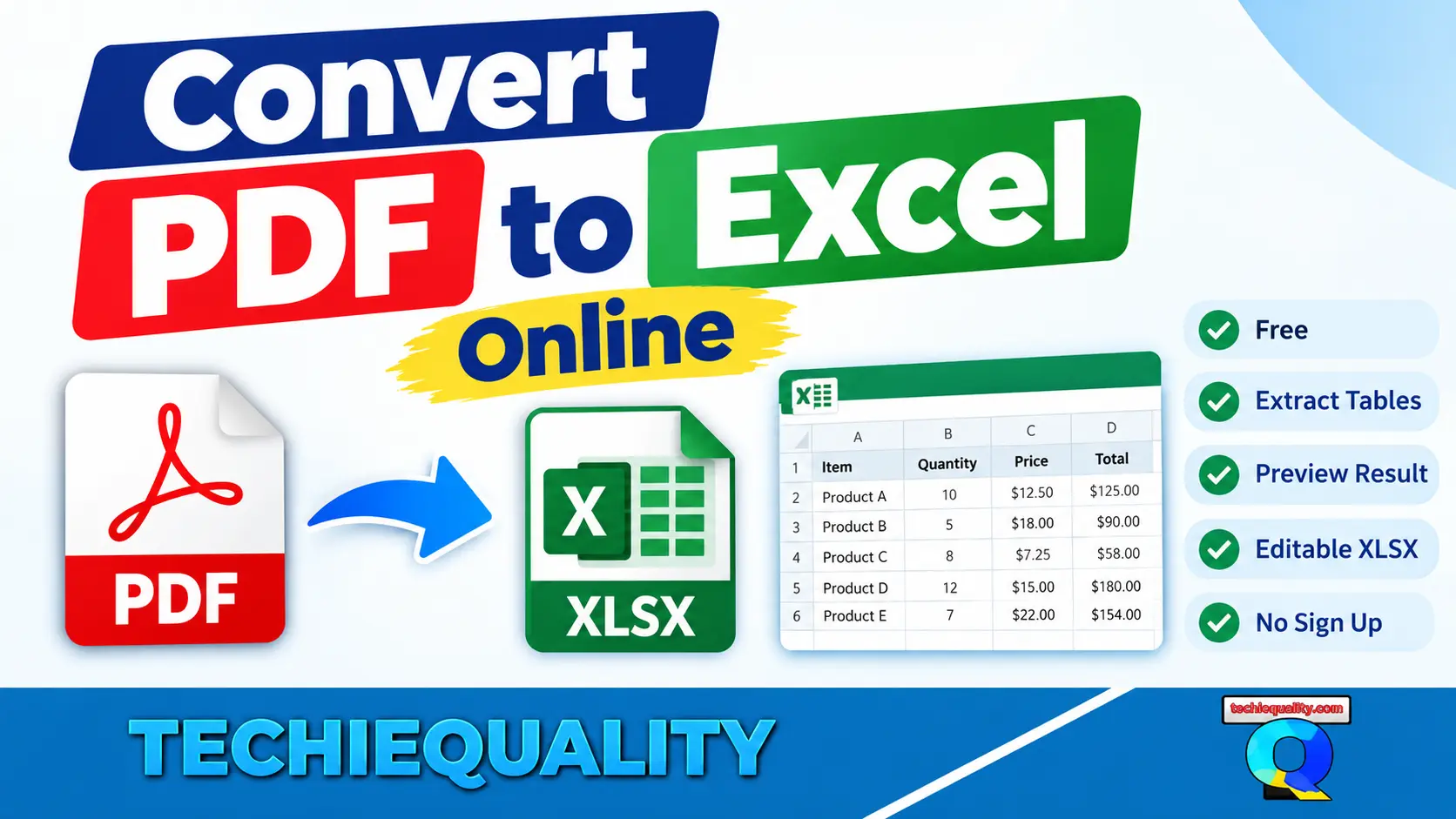
Need to turn a PDF into an editable Excel spreadsheet? Our pdf to excel converter free lets you convert PDF documents into Excel.
PDF to Excel Converter Free
Convert your PDF files into editable Excel spreadsheets quickly and easily with our free online PDF to Excel converter.
Convert PDF to Excel
Upload your PDF and convert tables and data into an editable Excel file.
PDF to Excel
Convert PDF documents into editable Excel spreadsheets.
Extract Tables
Extract useful table data from your PDF documents.
Preview Result
Review the converted result before using your Excel file.
User Friendly
Use the converter comfortably on desktop & other Devices.
pdf to excel converter free | Convert PDF to Excel Online
Need to turn a PDF into an editable Excel spreadsheet? Our pdf to excel converter free lets you convert PDF documents into Excel.
Instead of manually copying tables, numbers, invoices, reports, or other structured information from a PDF, you can select your PDF, preview the extracted data, adjust the conversion options, and download the result as an editable Excel workbook.
Use the PDF to Excel converter free tool above to get started.
What Is a PDF to Excel Converter?
A PDF to Excel converter is a tool that extracts text, numbers, tables, and structured information from a PDF and reorganizes that content into an Excel spreadsheet.
PDF files are excellent for sharing documents because their layout remains fixed across devices. However, PDFs are not always convenient when you need to sort data, filter records, calculate totals, create charts, or edit individual cells.
Converting a PDF to Excel changes that workflow.
Once the information is available in an Excel workbook, you can:
- Edit individual cells
- Sort and filter data
- Perform calculations
- Create charts and dashboards
- Analyse financial information
- Clean and organize tables
- Copy information into another workbook
- Use the data with Excel, Google Sheets, or other spreadsheet software
Our PDF to Excel converter free tool is designed for users who need a straightforward way to extract usable spreadsheet data from a PDF.
PDF to Excel Converter free
The easiest way to convert your PDF is to use the converter on this page.
How to Convert PDF to Excel
Follow these simple steps:
1. Choose your PDF
Click Choose PDF or drag your PDF file into the converter.
The tool accepts PDF files and begins reading the document in your browser.
2. Let the converter read the PDF
The converter processes the pages and extracts selectable text from the document.
For multi-page PDFs, the tool reads the available pages and analyzes their text positioning.
3. Preview the extracted data
Before downloading the spreadsheet, review the conversion preview.
This is particularly useful when your PDF contains tables, multiple columns, financial information, reports, or other structured data.
4. Adjust conversion options
Depending on the document, you can adjust options related to table detection, column spacing, page breaks, sheet organization, and number handling.
If the columns do not appear correctly, changing the column-gap setting can help the converter interpret the PDF layout.
5. Download the Excel file
When the preview looks correct, download the generated .xlsx Excel file.
You can then open the spreadsheet in Microsoft Excel or another compatible spreadsheet application.
Why Convert PDF to Excel?
A PDF is usually designed for viewing and printing. Excel is designed for working with data.
For example, imagine receiving a PDF containing 500 rows of sales information. Reading the document is easy, but manually copying those 500 rows into Excel can take hours.
Converting the PDF to Excel can significantly reduce that manual work.
An Excel spreadsheet makes it easier to:
- Calculate totals
- Filter records
- Sort transactions
- Analyze sales data
- Create pivot tables
- Build charts
- Prepare reports
- Compare data
- Perform quality analysis
- Reuse information in other documents
For business professionals, accountants, students, researchers, analysts, and administrative teams, converting PDF tables into spreadsheets can be much more efficient than manual data entry.
Convert PDF Tables to Excel
One of the most useful applications of a PDF to Excel converter is extracting tables.
Many PDFs contain information arranged visually into rows and columns. Examples include:
- Financial statements
- Invoices
- Expense reports
- Sales reports
- Inventory lists
- Price lists
- Employee records
- Purchase orders
- Statistical reports
- Research tables
- Business reports
The converter analyzes the positioning of text on the PDF page to determine how information should be organized into spreadsheet columns.
For documents with clearly aligned columns, this can make the resulting Excel workbook much easier to work with.
PDF to Excel for Financial Statements
Financial documents are often distributed as PDFs, while analysis is usually performed in Excel.
For example, you may receive:
- Bank statements
- Expense reports
- Credit card statements
- Financial reports
- Budget reports
- Transaction summaries
- Accounting reports
Instead of manually entering every transaction into Excel, you can convert the PDF and then review the resulting spreadsheet.
Always verify important financial information against the original PDF before using converted data for accounting, tax, compliance, or financial decisions.
PDF to Excel for Invoices
Invoices are another common use case.
A PDF invoice may contain information such as:
- Invoice number
- Date
- Customer name
- Product description
- Quantity
- Unit price
- Tax
- Discount
- Total amount
When invoices contain clearly structured text and tables, converting them to Excel can make it easier to consolidate information for reporting and analysis.
For example, you could create an Excel workbook containing invoice data from multiple documents and then use Excel formulas to calculate totals.
PDF to Excel for Business Reports
Business reports frequently contain tables that are difficult to reuse directly from a PDF.
Converting those reports into Excel allows you to work with the underlying information instead of simply viewing it.
You can then use Excel to:
- Compare monthly performance
- Calculate percentage changes
- Analyze trends
- Create management dashboards
- Prepare presentations
- Combine data from different reports
This can be especially useful for operations, finance, sales, procurement, quality, and business analysis teams.
Can You Convert a PDF to Excel for Free?
Yes, you can use a free PDF to Excel converter to convert supported PDF documents into an editable Excel workbook.
However, “free” does not necessarily mean that every PDF can be converted perfectly.
The quality of the result depends heavily on how the original PDF was created.
A digitally generated PDF containing selectable text and well-aligned tables generally provides a better starting point than a document that is simply a scanned image.
Can I Convert a Scanned PDF to Excel?
This is an important limitation to understand.
A scanned PDF may contain pages that are essentially images rather than selectable text.
If the PDF contains no usable text layer, a standard text-extraction converter may not be able to reconstruct the table correctly.
The converter on this page specifically checks whether the PDF contains selectable text. If no usable selectable text is found, the page indicates that the document may be a scan or photograph and recommends using OCR first.
For scanned PDFs, use OCR to create a searchable/selectable text layer before attempting PDF-to-Excel conversion.
This distinction is important because OCR and PDF-to-Excel conversion are two different processes:
Scanned PDF → OCR → Selectable text → Excel
rather than:
Scanned PDF → Excel
Does the PDF to Excel Converter Preserve Tables?
The converter includes table and column analysis designed to identify the structure of information on a PDF page.
For well-aligned tables, the conversion can produce a useful spreadsheet structure.
However, PDF documents can use many different layouts. Some documents have genuine tables, while others only position text visually so that it looks like a table.
Complex layouts may therefore require some cleanup after conversion.
For important documents, always compare the resulting spreadsheet with the original PDF.
PDF to Excel With Multiple Pages
A PDF may contain one page or hundreds of pages.
The converter reads the available pages and creates spreadsheet data based on the document structure.
You can also use the available sheet-related options to control how pages are organized in the resulting workbook.
This can be useful for reports where each page represents a different section or dataset.
PDF to Excel With Numbers
Numbers need special attention when converting documents to spreadsheets.
A number that appears visually in a PDF is not automatically an Excel number.
The converter includes number parsing so that recognized numeric values can be represented as spreadsheet values rather than simply being treated as ordinary text.
This makes converted data more useful for calculations.
What Happens to a Password-Protected PDF?
Some PDF documents are password-protected.
The converter detects when a PDF requires a password and provides a password entry step before the document can be processed.
If the password is incorrect, the converter asks you to try again.
This means you should have the correct password available before attempting to convert a protected PDF.
Is a PDF to Excel Converter Safe?
Privacy is an important consideration whenever you work with documents containing sensitive information.
Before using any online PDF converter, check how the service handles uploaded files and whether documents are transmitted to a remote server.
Read the disclaimer, any losses to data, the founder is not responsible, you are processing with your own decision.
However, you should still follow your organization’s information-security policies before processing sensitive documents.
What Types of PDFs Work Best?
PDFs with the following characteristics generally provide a better conversion experience:
- Selectable text
- Clearly aligned columns
- Consistent table structures
- Standard horizontal layouts
- Well-defined rows
- Digital rather than scanned content
What PDFs May Need Extra Cleanup?
Some documents are more difficult to convert accurately.
Examples include:
- Scanned PDFs
- Photographs of documents
- Handwritten documents
- Highly complex layouts
- Text positioned irregularly
- Tables with merged cells
- Documents containing multiple unrelated columns
- PDFs with unusual formatting
In these situations, you may need OCR, manual cleanup, or a different extraction approach.
PDF to Excel vs Copy and Paste
Copying and pasting data from a PDF into Excel can work for very small documents.
But it becomes inefficient when a document contains hundreds of rows.
Copy and paste
- Good for a few values
- Simple for small documents
- Can require manual formatting
- Easy to introduce errors
- Time-consuming for large tables
PDF to Excel conversion
- Better for structured tables
- Reduces manual data entry
- Produces an editable spreadsheet
- Makes further analysis easier
- Can handle multiple pages
For repetitive data extraction, converting the PDF is usually a more practical workflow.
PDF to Excel vs PDF to CSV
Both Excel and CSV are useful formats, but they serve different purposes.
An Excel XLSX file can contain worksheets, formatting, formulas, and richer spreadsheet structures.
A CSV file is essentially a plain-text representation of tabular data.
If your goal is to open the result directly in Microsoft Excel and continue working with a spreadsheet, XLSX is generally the more convenient format.
Who Can Use a Free PDF to Excel Converter?
A PDF to Excel converter can be useful for many types of users.
Accountants
Convert financial statements, expense reports, and transaction tables for analysis.
Business Analysts
Extract data from reports and prepare it for analysis.
Students
Convert research tables and statistical information into editable spreadsheets.
Researchers
Move structured information from PDF publications into spreadsheets for further analysis.
Small Business Owners
Extract invoice, sales, inventory, or expense information without manually retyping every value.
Administrative Professionals
Turn reports and lists into spreadsheets that can be sorted, filtered, and updated.
Quality Professionals
Extract inspection data, reports, measurements, and structured quality information into Excel for further analysis.
Tips for Better PDF to Excel Conversion
Follow these tips to improve your results:
1. Use a digital PDF whenever possible
A PDF generated directly from software usually contains a usable text layer.
2. Avoid scanned documents when possible
If your document is scanned, run OCR first.
3. Check the preview
Do not immediately assume that every column was extracted correctly.
4. Adjust the column-gap option
If the table structure looks incorrect, experiment with the column-gap setting.
5. Verify important numbers
Always compare critical figures with the original PDF.
6. Clean the spreadsheet after conversion
You may need to remove blank rows, correct headers, merge information, or adjust formatting.
7. Save the original PDF
Keep the source document so you can verify the spreadsheet later.
Frequently Asked Questions
Is this PDF to Excel converter free?
Yes. The tool is designed as a free PDF-to-Excel conversion utility for converting supported PDF documents into Excel .xlsx files.
How do I convert PDF to Excel for free?
Choose or drag your PDF into the converter, allow it to process the document, review the preview, adjust the available options if necessary, and download the resulting Excel workbook.
Can I convert PDF tables to Excel?
Yes. The converter includes table and column detection designed to identify structured information in PDF documents.
Can I convert a PDF to XLSX?
Yes. The converter generates an Excel .xlsx workbook.
Can I convert a scanned PDF to Excel?
A scanned PDF without selectable text cannot be directly processed by this converter. Use OCR first to create a selectable text layer, then convert the resulting PDF.
Does the converter support password-protected PDFs?
Yes. If the PDF requires a password, the converter provides a password prompt so the document can be opened before processing.
Will the converted Excel file be editable?
Yes. The purpose of the conversion is to create spreadsheet data that can be opened and edited in Excel-compatible software.
Can I use the converted file in Google Sheets?
An .xlsx file can generally be opened or imported into Google Sheets. After conversion, upload or open the Excel workbook in Google Sheets.
Why does my PDF convert incorrectly?
PDFs store content primarily according to its visual page layout. A document that looks like a table to a person may not contain a true table structure internally. Complex layouts, irregular spacing, merged cells, and scanned pages can therefore require additional cleanup or OCR.
Why are some pages missing from the result?
Pages without selectable text may be skipped because the converter relies on extractable PDF text. The tool identifies pages without usable selectable text rather than pretending that an image-only page was successfully converted.
Is PDF to Excel better than manually typing the data?
For large tables and structured reports, conversion can save substantial manual effort. However, important data should always be checked against the original PDF before being used for financial, legal, compliance, or other high-impact purposes.
Convert PDF to Excel Online for Free
If you need to turn a PDF table, report, invoice, or structured document into an editable spreadsheet, a free PDF to Excel converter can save time and reduce repetitive manual data entry.
The workflow is simple:
Choose PDF → Analyze PDF → Preview data → Adjust options → Download XLSX
Try the PDF to Excel converter above and turn your PDF data into an editable Excel spreadsheet.
PDF is excellent for sharing and preserving document layouts, but Excel is much better when you need to work with data.
A reliable PDF to Excel converter free tool gives you a practical way to bridge that gap. Instead of manually retyping information, you can extract the available text and table structure, review the result, and continue your analysis in Excel.
For the best results, use PDFs with selectable text and clearly structured tables, review the conversion before downloading, and verify important information against the original document.
Ready to convert your PDF? Choose your file above and create your Excel spreadsheet.
Thank you for reading ……….Keep visiting Techiequality


Shanti Gopal Pradhan is an experienced professional in Quality Management Systems, QA, Operations, Business Excellence, and Process Improvement. He has strong expertise in international standards including IATF 16949, ISO 9001, ISO 14001, ISO 45001, and ISO 17025, along with methodologies such as TQM, TPM, and Six Sigma.
He holds a degree in Mechanical Engineering along with an MBA, combining strong technical acumen with strategic business insight, he is a Certified Internal Auditor, Lead Auditor, and Six Sigma Black Belt, with a proven track record in driving quality transformation and operational excellence.